Creating your own stickers can feel intimidating at first, but with the right approach, you can produce professional, print-ready designs that elevate your brand, products, or personal projects. Stickers are versatile tools for branding, packaging, personalized gifts, or even planners and journals.
Canva makes it simple for both beginners and experienced designers to create high-quality, print-ready designs. By following this step-by-step guide, you’ll ensure your stickers come out crisp, vibrant, and exactly as you envisioned.
1. Understand Print Basics
Before opening Canva, it’s important to understand how print differs from digital design. Designs that look perfect on a screen may not always translate accurately to print.
Colors can shift because screens use RGB (red, green, blue), while printers use CMYK (cyan, magenta, yellow, black). Bright colors may appear slightly muted, and certain details can be lost if the file isn’t properly prepared.
Several key print concepts will help your stickers look professional:
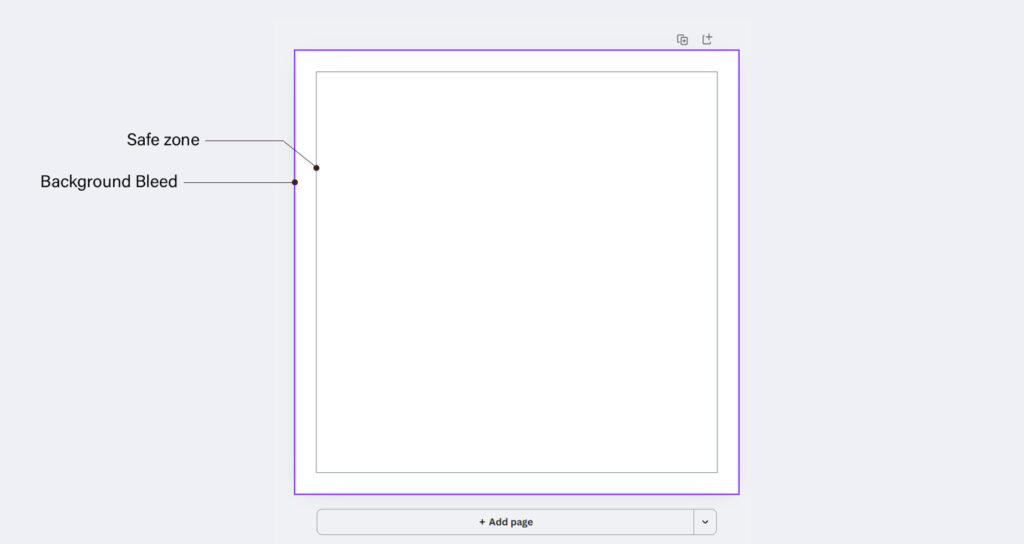
- Bleed – This is extra space added around the edges of your design to prevent unwanted white borders after cutting. Without bleed, even a small misalignment during cutting can make your sticker appear uneven or incomplete. Printers typically recommend adding a few millimeters beyond your intended design.
- Safe zone – Important elements like text, logos, or essential graphics should remain within this area to avoid being trimmed during production. Leaving a small margin from the edge ensures everything important stays intact.
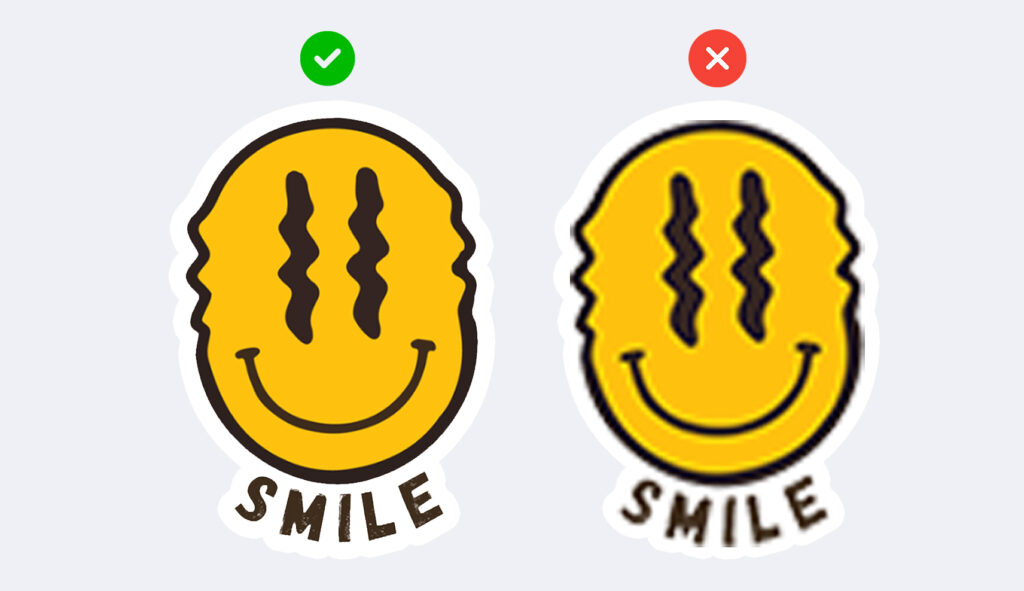
- DPI (dots per inch) – This measures the resolution of your design. Higher DPI ensures images and text remain sharp. For stickers, a resolution of at least 300 DPI is recommended to prevent blurriness or pixelation when printed.
Additionally, deciding on the correct size and format for your stickers is critical. Stickers come in a variety of shapes and sizes, from small circular icons to larger die-cut designs. Confirming your final dimensions ahead of time ensures your design prints accurately and maintains the right proportions.
2. Set Up Your Canva Workspace
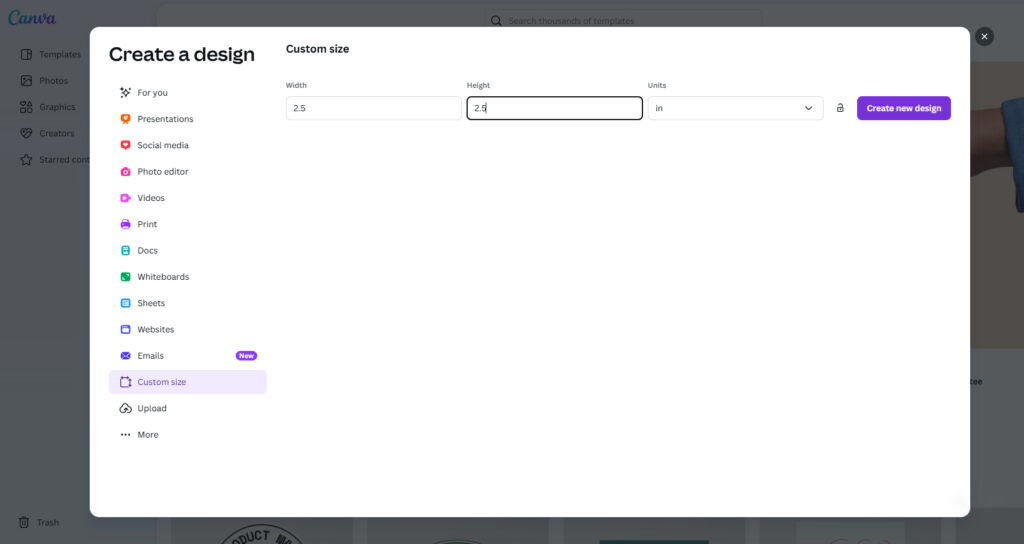
- Open Canva and select Custom Size. Enter the exact width and height of your sticker in inches, millimeters, or pixels, based on your printer’s specifications. Confirming these measurements before designing helps avoid stretching or distortion and ensures a polished result.
- Choose whether to start with a pre-made template or a blank canvas. Templates can save time and offer helpful guidance, while a blank canvas allows full creative freedom to experiment with layout, shapes, and colors.
- Organize your layers carefully. Keep backgrounds, images, and text separate so adjustments are simple, and elements do not accidentally overlap. Layer organization makes it easier to align your design accurately and keeps the file print-ready.
3. Create Your Sticker Design
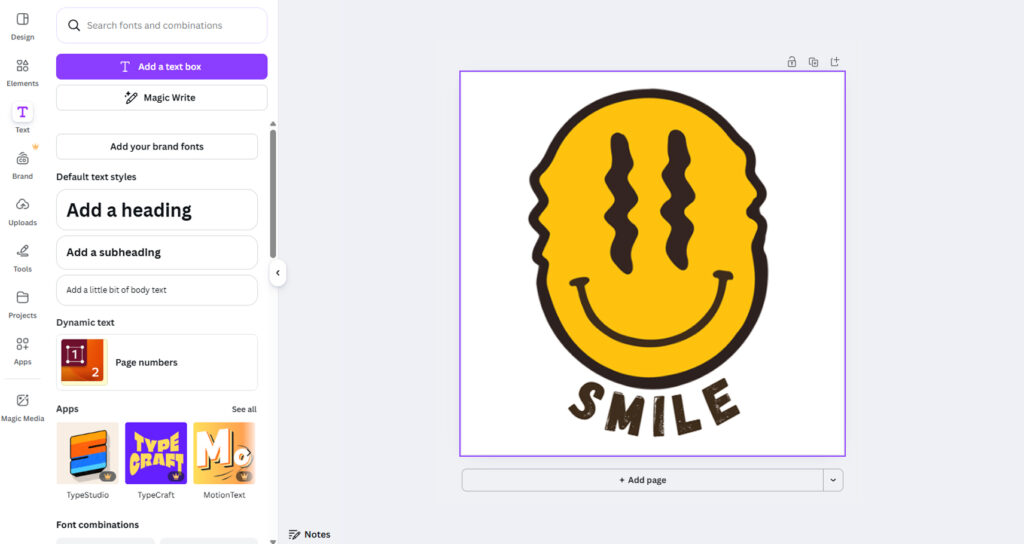
When designing your sticker, simplicity and clarity are essential. Stickers are small, and intricate details may be lost in printing. Focus on bold shapes, high-contrast colors, and legible fonts so your design stands out.
- Use vector graphics or high-resolution images to prevent pixelation. Vectors scale without losing quality, which is especially useful for intricate or detailed designs.
- Incorporate branding elements, such as your logo, signature colors, or custom illustrations. This creates a cohesive look and reinforces brand recognition.
- Pay attention to font selection and color combinations. Avoid fonts that are too thin or small, and ensure colors work well together in print. Testing your colors in CMYK mode or consulting your printer can help you predict how your final sticker will appear.
Remember, your design should be visually appealing while staying practical for printing. Less is often more when it comes to stickers. Clean, simple designs tend to look professional and are easier for customers to read or recognize at a glance.
4. Prepare Your Design for Export
Once your design is complete, it’s time to prepare it for printing.
- Check alignment and spacing to ensure elements are evenly distributed, and nothing is too close to the edges.
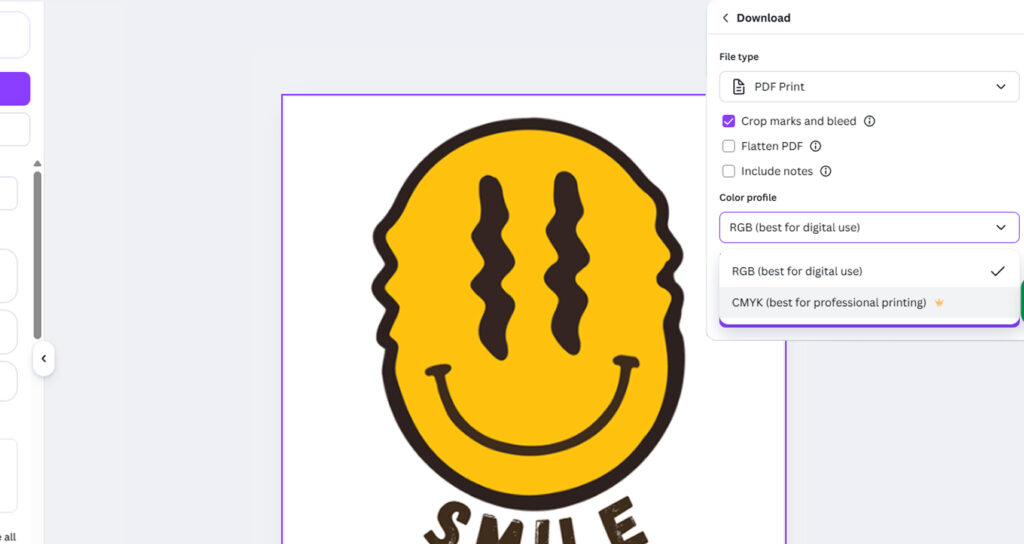
- Add bleed and crop marks if your printer requires them. These marks guide accurate cutting and prevent unwanted borders.
- Export your file using Canva’s PDF Print option for high resolution. For decorative or smaller stickers, you can also use a PNG file at 300 DPI.
Consider the color mode. Printing usually uses CMYK, so converting your colors or consulting your printer ensures your stickers match your intended palette.
Taking these steps prevents common printing issues, such as blurry images, cut-off text, or colors that appear different from what you see on screen.
5. Avoid Common Mistakes
Even with Canva’s user-friendly tools, small mistakes can still impact the final print quality of your stickers. Paying attention to the details helps ensure your designs come out clean, crisp, and professional. Here are a few common issues to watch for:
- Low-resolution images that appear blurry or pixelated. Images pulled from the internet or screenshots often don’t meet the 300 DPI requirement for clear printing. Always use high-resolution or vector-based graphics to maintain sharpness.
- Text is placed too close to the edge, which risks being trimmed. Printers need a margin for cutting, and anything sitting outside the safe zone may not survive the trimming process. Keeping text, logos, and key elements well within the inner boundary prevents accidental cutoffs.
- Ignoring bleed or crop lines. Bleed gives your design extra room during cutting and helps avoid white edges. Missing or incorrect bleed settings can lead to misaligned prints or uneven borders.
- Overcomplicating small designs with too many details. Stickers often shrink your artwork down to a much smaller size. Fine lines, small icons, and intricate patterns may become muddy or indistinct once printed. Simple designs tend to reproduce more clearly and look more polished overall.
Focusing on clarity, spacing, and proper file preparation will help you create stickers that look consistent, professional, and visually appealing once they’re printed.
6. Achieve a Professional Finish
To make your stickers look polished and durable:
- Use Canva’s Download with bleed feature to ensure clean edges.
- Print a test proof before a full batch to check alignment, colors, and overall appearance.
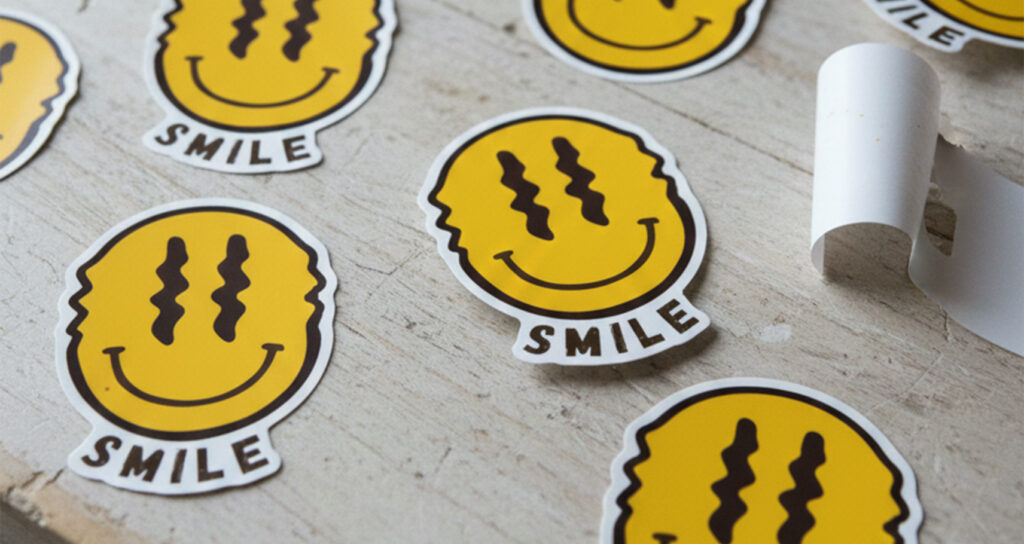
- Consider your sticker material and finish. Matte, glossy, or waterproof options can affect both appearance and longevity.
- Organize layers and save your files properly to make any future edits or reprints simple.
These small steps help your stickers look consistent, professional, and high-quality.
7. Print Your Stickers
Once your design is finalized, the last step is choosing the right printing partner. A trusted custom sticker printing service can make all the difference in how your final product turns out. Even the best-designed file still relies on professional printing to capture accurate colors, clean cuts, and durable finishes. A reliable printer uses high-quality materials, calibrated machines, and consistent cutting methods that help preserve the integrity of your design.
Working with a reputable printing service also gives you access to different material options such as matte, glossy, vinyl, or waterproof finishes, allowing you to select the best fit for your products or projects. This level of customization helps your stickers not only look polished but also perform well in their intended environment, whether they’re used on packaging, given as freebies, or added to customer orders.
Most importantly, a good printer provides guidance when needed. They can recommend the best file format, check for potential sizing or bleed issues, and help ensure your stickers come out exactly as you envisioned. Choosing a trusted custom sticker printing company gives you confidence that your Canva design will translate seamlessly to print, offering a professional and reliable finish every time.
Conclusion
Preparing sticker designs for print doesn’t have to be intimidating. With a clear understanding of print requirements, a properly set-up Canva workspace, thoughtful design choices, and careful exporting, you can create stickers that look polished and professional. Give yourself the freedom to experiment, refine, and enjoy the creative process. Each design you create builds your confidence and helps you discover what works best for your brand or personal style.
Once your files are ready, all that is left is bringing them into the world. With the right preparation, your stickers will print beautifully and make the impression you intend, whether you use them for packaging, gifts, or everyday creativity. A well-designed sticker has a way of elevating even the simplest project, and the ones you create today may become the small details your customers remember most.